
Welcome to my InVideo AI review.
Ever dreamed of producing a slick, polished YouTube video without spending hours hunched over a timeline, fighting with layers and cuts? Or maybe you run a small business and the thought of paying an agency thousands of dollars to make a simple product ad makes you want to cry into your morning coffee. If any of that sounds familiar, you've probably already heard of InVideo AI — the tool that claims to turn a one-line prompt into a full video in minutes.
I've put InVideo AI through its paces so you don't have to. In this review, I'll break down exactly what it does, where it shines, where it stumbles, and whether it's worth your hard-earned dollars. I've pulled from multiple hands-on testing sessions and real-world use cases — from long-form YouTube content to snappy TikTok shop ads — so this review is as real as it gets.
Let's dive in.
⭐ My InVideo AI Rating: 4.6 out of 5
InVideo AI earns its near-top score for bundling the world's leading AI video models — Sora 2, VEO 3.1, and Kling AI — under one subscription that starts at $25 per month, when accessing these individually would cost $400+ per month combined. The Workflows feature saves hours of setup time, voice cloning from a 30-second sample is impressive, and the platform is genuinely accessible to complete beginners.
It loses points for a credit system that can add up quickly with iterative edits, no project duplication feature, AI consistency that varies from session to session, no money-back guarantee on paid plans, and current limitations with realistic human lip-sync that make it better for B-roll than talking-head avatar content. For long-form YouTube content creators, marketers, and agencies who need consistent video output at scale — it is the best all-in-one AI video platform available in 2026.
What is InVideo AI?
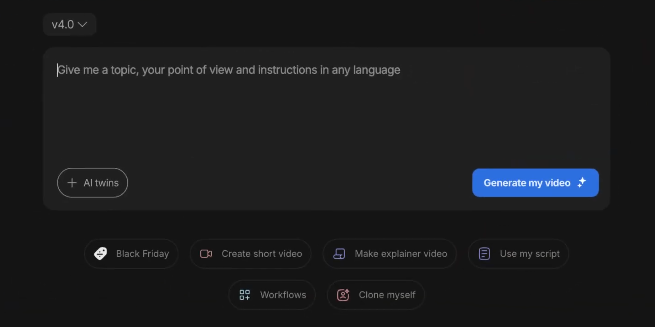
InVideo AI (invideo.io) is a browser-based, AI-powered video creation platform that transforms text prompts into complete, ready-to-publish videos. Think of it as having a video production team stuffed into a chat window: you type in your idea, and it writes the script, selects the footage, records a voiceover, picks background music, adds captions, and stitches everything together — automatically.
Founded in 2017 and now serving more than 50 million users across 190+ countries, InVideo has grown from a template-based editor into a full-blown AI video powerhouse. It's backed by $35 million in Series B funding, which tells you this isn't some fly-by-night startup — they're in it for the long haul.
What really sets InVideo apart from many competitors in 2026 is its integration of the world's leading AI video generation models — including OpenAI's Sora 2 and Google's VEO 3.1 — all accessible from one single platform. Getting Sora 2 standalone through ChatGPT Pro would run you about $200/month. VEO 3.1 Ultra? Close to $250/month on its own. InVideo bundles both (plus others like Kling AI) starting at $25/month. That's either a screaming deal or a very clever piece of marketing, depending on how much you actually use each model. (Spoiler: for most creators, it's the former.)
InVideo AI at a Glance: Type a prompt. Get a video. Edit with more prompts. Export and publish. That's genuinely the whole workflow for most users.
Who Is InVideo AI For?
InVideo AI is built for people who need video output — and a lot of it — without the learning curve of traditional editing software. If you fall into any of these camps, you'll probably find it very useful:
- Content creators & YouTubers: If you want to produce regular video content but don't want to spend half your life in Premiere Pro or DaVinci Resolve, InVideo can churn out a full 10-minute YouTube video from a single prompt. One of our reviewers tested this with a how-to-fly-a-plane explainer and was genuinely blown away by the results out of the gate. Of course, great video content is only half the battle — pairing InVideo with solid YouTube SEO practices is what actually gets you found.
- Small business owners & marketers: Need a product promo? A quick explainer for your landing page? An ad for TikTok or Instagram? InVideo's short-form video capabilities are excellent, and one seasoned media company owner uses it regularly to create TikTok shop affiliate content for products.
- Social media managers: Maintaining a consistent posting schedule is a grind. InVideo's workflow templates let you spin up videos for YouTube, TikTok, Instagram Reels, and more — pre-sized and paced for each platform — without starting from scratch every time.
- Faceless channel operators: The AI Twins feature lets you create an AI avatar that looks and sounds like you, meaning you never have to be on camera. Great for faceless YouTube channels or anyone a little camera-shy. Not sure what niche to build your faceless channel around? Check out these top faceless YouTube niches.
- Agencies managing multiple clients: Brand kits, voice cloning, and team collaboration tools make it easy to maintain consistent visual and audio identities across different accounts without rebuilding settings from scratch.
- Beginners with zero video experience: No timeline knowledge needed. You can genuinely publish a competent, watchable video on your very first day. That's pretty wild.
Who Is InVideo AI NOT For?
As much as we love a good AI tool, InVideo isn't for everyone. Save yourself some frustration and read this section carefully:
- Professional videographers and film editors: If you live for frame-precise control, complex motion graphics, deep color grading, or cinematic storytelling with real human performances, InVideo will feel like trying to sculpt marble with a spoon. You need Adobe Premiere, Final Cut, or DaVinci Resolve for that level of finesse.
- Brands requiring custom on-screen human presenters: InVideo doesn't offer fully realistic talking avatar presenters in the way that Synthesia or HeyGen do. If you need a photo-realistic AI host for your corporate training videos, look elsewhere.
- People expecting a "set it and forget it" tool: You will need to review your videos. AI picks footage and writes scripts, but it doesn't always nail it. One reviewer found the AI added unwanted specific discount percentages to a promotional video — not ideal when you're running a real campaign. Expect to edit.
- Budget-conscious users who need heavy editing: Every generative edit costs credits. One reviewer noted that if you're not careful, you can rack up a $100+ bill just from iterative edits. The credit system requires attention.
- Long-form documentary or narrative filmmakers: The tool handles 80% of production decisions automatically, which is great for efficiency but limiting for storytelling that requires nuanced, human judgment at every cut.
Key Features of InVideo AI
InVideo AI packs a surprising number of features into one platform. Here's a breakdown of the most important ones:
1. AI Video Generator (Text to Video)
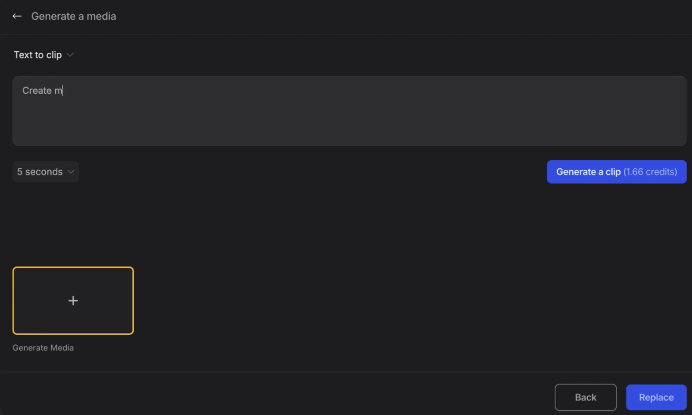
This is the crown jewel. You type a prompt — or paste an entire script — and InVideo generates a complete video with matched stock footage, a voiceover, background music, captions, and transitions. Short-form videos (under 5 minutes) typically generate in 3 to 5 minutes. Longer content (up to 10 minutes) takes 10 to 20 minutes.
The current top model is version 4.0, and sticking with it gives you the best results. The quality difference between the free stock-media version and the premium AI-generated version is significant — the premium version respects your style references, produces more relevant footage, and delivers a notably more polished output.
Pro Tip: The more specific your prompt, the better your video. Instead of 'make a video about our app,' try 'Create a 30-second TikTok for early-stage founders showing how our app automates invoicing.' Night and day difference.
2. Workflows & Templates
This is arguably one of the most practical features on the platform. Workflows are pre-built templates organized by video type: faceless videos, ads and marketing, animation videos, explainer videos, YouTube content, and more. Instead of starting from zero, you pick a workflow that matches what you need and customize from there.
There are over 5,000 templates available, covering social media posts, ads, explainer videos, business presentations, and more. Each template comes pre-designed with layouts, transitions, and placeholder content that the AI fills in based on your input. One reviewer calls this their favorite feature precisely because it saves so much setup time.
3. Agents & Models — A Model Marketplace Under One Roof
This is where InVideo AI really differentiates itself in 2026. The Agents & Models section gives you access to a curated lineup of the world's leading AI video and image generation models — all without separate subscriptions:
- Google VO3 / VEO 3.1: Google's latest video generation model, producing stunning cinematic short clips.
- OpenAI Sora 2 Pro: One of the most talked-about video generators available, now accessible inside InVideo.
- Kling AI: Another top-tier video generation option with great motion quality.
- Seedream & NanoBanana: For image generation and image editing, including background removal and cleanup.
The ability to switch between models inside a single project — generating an image with one model, cleaning it up with another, and then animating it with a third — is genuinely impressive. You can do all of this without ever leaving the chat window.
4. AI Script Generator
InVideo can write your script for you if you provide a topic or a brief. It's competent and fast, though reviewers note the output tends to be on the generic side — safe and functional, but not exactly Pulitzer-worthy. For anyone who needs a solid starting point, it works well. For videos where writing quality really matters, plan to rewrite or heavily edit the AI's first draft.
A clever workflow: use ChatGPT to generate a detailed outline or tips list, paste that directly into InVideo as additional context, and let InVideo build the video around it. The results improve significantly when you feed it quality raw material.
5. Prompt-Based Editing
After your video is generated, editing doesn't require opening a complex timeline. You type what you want to change, and the AI does it. Commands like "remove all subtitles," "change this to Spanish," or "replace the background music with something upbeat" work about 75% of the time without needing a retry.
The remaining 25% of the time — and this is important — you may need to try rephrasing your command, or switch to the manual timeline editor to make the adjustment yourself. It's not perfect, but it's still dramatically faster than traditional editing for most changes.
6. Timeline Editor
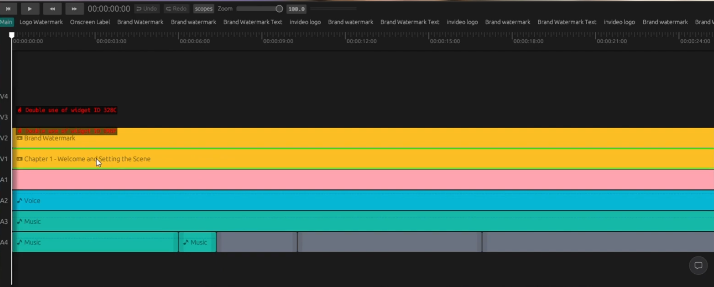
InVideo recently added a proper timeline editor with drag-and-drop functionality for video clips, audio files, and other elements. This is a significant improvement for users who've been frustrated by the AI's occasionally unpredictable behavior during edits. It gives you manual control when the AI isn't cooperating, without needing a separate piece of software.
7. Voice Generator & Voice Cloning
InVideo includes a natural-sounding AI voice library with 30+ voice options across 50+ languages. In 2026, the quality of these voices has reached a point where casual listeners will often not realize they're listening to AI — particularly for conversational or explainer-style content.
Voice cloning is a standout feature: upload a 30-second audio sample of your own voice, and InVideo creates a synthetic version that reads your scripts. Max plan users get up to 5 voice clones, which is great for agencies maintaining distinct brand voices across multiple clients. You can also carry a voice from one project to another by referencing a previous video's URL in your prompt — a clever workaround for consistency when duplicating projects.
8. AI Twins (Personal Avatar)
For creators who want to appear on camera without actually being on camera, the AI Twins feature lets you create a personal AI avatar that looks and sounds like you. It's particularly useful for faceless YouTube channels or anyone who wants a consistent on-screen presence without scheduling recording sessions.
One important caveat: current AI video generation still struggles with realistic human mouth movement and hands — the technology is used most effectively for B-roll footage rather than talking-head presentations. For full talking-head avatar videos, tools like HeyGen and Synthesia currently have the edge.
9. Explore Section — Trend-Aware Content Ideas
The Explore section shows you trending prompts, video ideas, and popular content formats that are performing well right now. For creators who sometimes stare at a blank screen wondering what to post next, this feature is a genuine time-saver. It removes creative block and shows you what's actually resonating with audiences in your niche.
10. Multi-Language Support & Auto-Captions
InVideo supports scripts, voiceovers, and subtitles in 50+ languages. You can type "change it to Spanish" in the editing prompt and the entire narration gets translated. Auto-captions are generated automatically — a crucial feature since most social media videos play without sound. This multi-language capability is rare among competitors at this price point.
11. Brand Kits
Set up your logo, brand colors, and fonts once, and every generated video automatically applies them from the first draft. This is a real time-saver for agencies and businesses maintaining consistent branding across multiple videos and campaigns.
12. Photo to Video & Text to Image
Got a still image and want to turn it into a moving clip? InVideo can do that. This is particularly useful for product marketers — one reviewer used it to create B-roll footage of product imagery for TikTok shop affiliate videos. The text-to-image feature lets you generate a custom image first, then animate it into video. It's a cost-effective way to create custom B-roll without hiring a videographer.
13. Real-Time Team Collaboration
Multiple users can work on the same project simultaneously, with changes syncing instantly and team members able to leave timestamped comments. Changes from multiple editors don't create conflicts, which makes InVideo viable for small teams and agencies.
What I Liked: The Pros
- One platform, all the models: Access to Sora 2, VO3, Kling, and more under one subscription is genuinely excellent value. Subscribing to these individually would cost several times what InVideo charges.
- Incredibly fast video generation: Short videos in 3–5 minutes, longer ones in under 20. For any creator under time pressure, this is a game-changer.
- Genuinely beginner-friendly: Zero prior video editing experience required. First-time users can publish professional-looking content on day one.
- Prompt-based editing is intuitive: Telling the AI what to change in plain English feels magical when it works — and it works most of the time.
- Excellent for short-form content: TikTok, Reels, YouTube Shorts, Instagram — InVideo handles short-form video creation exceptionally well.
- Solid voice cloning: The 30-second sample voice cloning is impressive in quality and saves hours of recording time for regular creators.
- Brand kits are a real time-saver: Set once, applied everywhere. Agencies will especially appreciate this.
- New timeline editor: The recent addition of drag-and-drop timeline editing fills a significant gap for users who need manual control.
- Cloud-based, no downloads: Works in any browser on any machine without needing high-performance hardware.
- Excellent customer service: Multiple reviewers singled out the support team as genuinely responsive and helpful.
- Long-form video capability: Full 10-minute YouTube videos from a single prompt remains genuinely impressive technology that still blows minds, even for experienced creators.
What Needs Work: The Cons
- Credits add up quickly: Every generative edit costs credits. Iterating heavily on a video — especially on the paid generative features — can get expensive fast. One reviewer noted bills creeping toward $100 from edits alone. Budget carefully.
- Sync issues after edits: Editing a video after the fact can cause the narrator's voice to fall out of sync with subtitles or clips. Always watch the full video after any edit — which adds time you were trying to save.
- No project duplication: Want to create a series of videos in the same style? You can't simply duplicate a project. You'll need to keep detailed notes on which voice, colors, prompts, and settings you used so you can recreate them in the next video. This is an annoying oversight for brand consistency.
- AI output can be inconsistent: Prompts that work brilliantly one day may produce error messages the next. The AI has good days and frustrating days, and there's not much you can do but try again or tweak the phrasing.
- Stock footage reliance on free tier: The free version leans heavily on generic stock images that often look identical between different video attempts. The premium AI-generated footage is significantly better, but requires those precious credits.
- Long-form editing is tricky: Editing a long-form video after generation is genuinely difficult. Commands can sometimes produce an entirely different video rather than a targeted fix. For long-form content, get it right on the first prompt as much as possible.
- AI scripts are generic: The AI-written scripts work but tend to sound like every other explainer video on the internet. For videos where voice and personality matter, rewrite or customize.
- No free trial for premium: There are no free trials or money-back guarantees on paid plans. The free plan lets you test the basics, but you can't properly evaluate the premium features before committing financially.
- Human lip-sync limitations: Current AI video generation still stumbles with realistic mouth movement and hands on human subjects. InVideo is best used for B-roll style content rather than realistic talking-head AI avatars.
- Music licensing awareness required: InVideo may add music to your videos, but you can't use just any music on TikTok, Facebook, or YouTube without copyright consequences. Always check the licensing of any music used in your exported content.
- Stock footage platform restrictions: Many stock media licenses prohibit use in paid ads. TikTok, for instance, allows AI-generated content in affiliate product videos but not licensed stock media. Know the rules of the platform you're publishing on.
InVideo AI Pricing & Plans
InVideo AI offers four main subscription tiers. Here's how they break down:
Feature | Free | Plus | Max | Generative |
Monthly Price | $0 | ~$25–28 | ~$48–60 | ~$96–100 |
AI Video Generation | 2 min/wk | 50 min/mo | More mins | 900 credits |
Watermark | Yes | No | No | No |
Export Quality | 720p | 1080p | 1080p | 4K |
iStock Credits | — | 80 | 320 | 320 |
Voice Clones | — | 2 | 5 | 5 |
Storage | 10 GB | 100 GB | 100 GB+ | 100 GB+ |
AI Models (Sora, VO3, etc.) | Limited | Yes | Yes | Yes (Full) |
Priority Support | — | — | Yes | Yes |
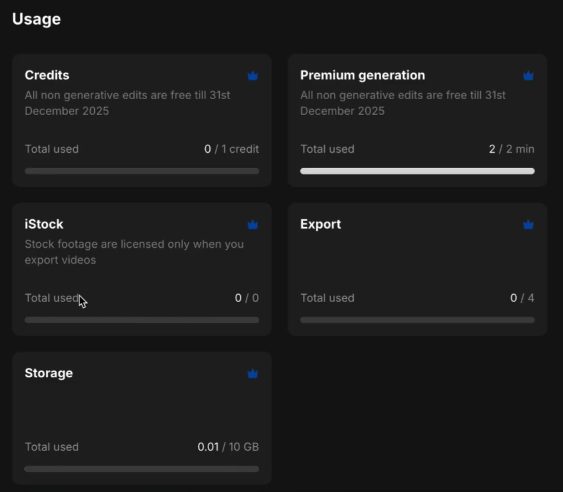
All prices shown are approximate for annual billing. Monthly billing is slightly higher. AI minutes/credits reset monthly and do not roll over — a meaningful consideration if your production schedule varies significantly from month to month.
Who should pick which plan? Free is for testing. Plus suits consistent solo creators. Max is ideal for agencies and heavy users. Generative is for power users who want maximum AI-generated content without worrying about running out of credits.
Is the Paid Version Worth It?
If you're creating AI-generated long-form YouTube videos, or regularly publishing AI content to TikTok and Instagram — yes, the paid version is worth it. The quality jump between free and paid is substantial, and the access to top-tier models (Sora 2, VO3) that would cost $200–$250/month standalone makes even the Generative plan look like a bargain for power users.
That said, you need to be smart about credit usage. One experienced media company owner recommends using the photo-to-clip workflow as a cost-effective alternative to full AI video generation for B-roll: generate images with AI (even via ChatGPT), import them into InVideo, animate them with a video editor, and assemble the final video yourself. You get impressive custom B-roll at a fraction of the generative credit cost.
Can You Get a Refund?
Here's where InVideo is a little less sunny: there are no free trials for premium plans and no explicit money-back guarantees advertised on their premium subscriptions. Once you pay, you're in. The free plan gives you a reasonable taste of the platform (minus all the features that make it great), but you can't fully experience premium quality without committing.
This is a notable criticism, especially given that some competitors do offer trial periods. If you're on the fence, take the free plan seriously — experiment with it, watch their training videos, and reach out to their customer service team before upgrading. Multiple reviewers have praised the support team as genuinely knowledgeable and responsive.
5 Mistakes to Avoid When Using InVideo AI
Whether you're brand new or a few projects in, these are the pitfalls that trip people up most often:
Mistake 1: Relying Solely on Stock Media (Free Tier)
InVideo's free version leans heavily on stock images, and it shows. The same generic images tend to recycle across different projects, making your videos look identical to what anyone else is making. If you want distinctiveness, either upload your own media or invest in a premium plan for AI-generated footage.
Mistake 2: Assuming Everything Syncs Perfectly After an Edit
Made a change to the script after the video was generated? Always — always — watch the full video from start to finish before exporting. Post-edit sync issues between narration, subtitles, and clips are a known quirk of InVideo's AI. It's annoying but manageable once you know to look for it.
Mistake 3: Not Keeping Notes on Your Project Settings
Because InVideo doesn't currently support project duplication, creating consistent branded videos requires you to meticulously record which voice, which prompts, which colors, and which music you used. Keep a simple notes document for each project template you create. Future you will be very grateful.
Mistake 4: Expecting Perfect Results Without Revision
InVideo AI is a remarkably capable tool, but it is not a "one prompt, perfect video" machine. Plan to iterate. Prompts sometimes produce unexpected results, the AI occasionally has off days, and details like unwanted script content ("Get 20% off today!" when you never mentioned a discount) do slip through. Build revision time into your workflow.
Mistake 5: Thinking AI Replaces All Editing Skills
InVideo dramatically reduces the need for traditional video editing — but it doesn't eliminate it entirely. For anything requiring precise color grading, complex audio mixing, or nuanced pacing adjustments, you'll still want a real video editor on hand. The new timeline feature helps close this gap, but for professional-grade post-production, InVideo is a complement to traditional tools, not a full replacement. If you want to sharpen those skills alongside using InVideo, these video editing tips are a great starting point.
InVideo AI vs. The Competition
How does InVideo stack up against the other big names in AI video creation?
Tool | Best For | Starting Price | AI Models | Ease of Use |
InVideo AI | Long & short form video | Free / $25+ | Sora 2, VO3, Kling, more | ⭐⭐⭐⭐⭐ |
Pictory | Blog/article repurposing | $25/mo | ElevenLabs voices | ⭐⭐⭐⭐ |
Synthesia | Training & avatar videos | $29/mo | Avatar-focused | ⭐⭐⭐⭐ |
HeyGen | AI avatar demos | $29/mo | Avatar & translation | ⭐⭐⭐⭐ |
Veed | Editing + AI hybrid | $18/mo | Magic Cut, TTS | ⭐⭐⭐⭐ |
Runway ML | Cinematic AI video | $12/mo | Gen-3, Gen-4 | ⭐⭐⭐ |
The short version: InVideo AI leads the pack for long-form YouTube content and for sheer value-for-money when you factor in the bundled AI models. Synthesia and HeyGen are better if you specifically need realistic talking-head avatars. Pictory wins for repurposing existing blog or long-form content. Runway ML produces more cinematic, high-quality short clips. Veed is the pick if you want strong manual editing controls alongside AI features.
For short-form content (TikToks, Reels), one experienced creator actually prefers a newer competitor called Syllabi for its simplicity and lower cost. Worth keeping in mind if your focus is purely on short-form social content.
Final Verdict: Is InVideo AI Worth It?
InVideo AI is arguably the best all-in-one AI video creation platform available in 2026 — especially for long-form content creators and anyone who wants access to the world's leading AI video models without managing five separate subscriptions. InVideo is just one piece of a larger AI toolkit — if you're curious about other ways to monetize AI tools, take a look at how to make money with AI.
It's fast, surprisingly capable, and genuinely beginner-friendly. The Workflows feature alone saves hours of setup time, the voice cloning is impressive, and the bundled access to Sora 2, VEO 3.1, and Kling AI under one roof is outstanding value.
Is it perfect? Not quite. Credits add up, AI consistency can be frustrating, and the lack of project duplication feels like an oversight for a tool targeting content creators. The absence of a proper refund policy is a meaningful concern for anyone not sure about committing.
But for content creators, marketers, small business owners, and agencies who need a steady flow of video content without a full production team, InVideo AI delivers on its core promise in a way that very few tools can. If the bigger picture of building a YouTube income stream interests you, there are plenty of ways to make passive income on YouTube worth exploring alongside a tool like InVideo
Our overall verdict breaks down like this:
- Ease of Use: 9/10 — Genuinely accessible for complete beginners.
- Feature Set: 9/10 — The breadth of models and tools is exceptional.
- Video Quality: 8/10 — Excellent for social and YouTube; not for cinematic work.
- Value for Money: 8/10 — Bundled model access is great; credit costs require vigilance.
- Customer Support: 9/10 — Consistently praised across multiple reviewers.
- Overall: 8.6/10 — A strong recommendation for the right user.
Frequently Asked Questions (FAQ)
Is InVideo AI free?
Yes, InVideo AI has a free plan that gives you 2 AI video minutes per week, access to stock media, and 4 weekly exports — all with an InVideo watermark. It's enough to explore the platform, but the watermark makes it impractical for professional or commercial use. There are no free trials for premium plans.
Can I create a 10-minute YouTube video with InVideo AI?
Yes. InVideo AI supports videos up to 10 minutes long using its Workflows feature, which includes a YouTube-specific format. You can generate a full explainer video from a single prompt, then refine it with additional prompt-based editing commands. It remains genuinely impressive technology for long-form AI video generation.
Does InVideo AI include access to Sora 2 and Google VEO 3.1?
Yes. As of 2026, InVideo has integrated both OpenAI's Sora 2 and Google's VEO 3.1 into its Agents & Models section. Accessing Sora 2 via ChatGPT Pro costs around $200/month; VEO 3.1 Ultra runs approximately $250/month on its own. InVideo includes both starting at around $25/month — a substantial cost saving for creators who actively use these models.
Can I clone my own voice with InVideo AI?
Yes. You can upload a 30-second audio sample of your voice, and InVideo will create a synthetic version that reads your scripts for future videos. Plus plan users get 2 voice clones; Max plan users get up to 5. This is particularly valuable for agencies maintaining consistent brand voices across multiple client accounts.
Is InVideo AI good for TikTok videos?
Yes, InVideo handles short-form content well. It supports vertical video formats sized for TikTok, Instagram Reels, and YouTube Shorts, with AI-generated footage, narration, and captions. One experienced media company owner regularly uses it to create TikTok shop affiliate content. That said, some creators prefer competing tools like Syllabi for short-form social content due to their simpler workflow and lower cost.
Does InVideo AI handle multiple languages?
Yes. InVideo supports 50+ languages for scripts, voiceovers, and subtitles. You can switch a video's language by simply typing 'change it to Spanish' (or any other language) in the editing prompt, and the narration will be translated automatically. This multi-language support is rare at this price point.
How much does it cost to use generative AI features?
Generative AI features (like AI-generated video clips, not stock footage) use credits. Each generative edit — whether generating a new clip, replacing footage with AI media, or running a text-to-video prompt with credits — costs credits that vary by task. Credits reset monthly and do not roll over. On lower-tier plans, it's easy to exhaust your credits quickly if you iterate heavily. The Generative plan includes 900 credits per month, which is enough for intensive users.
Can InVideo AI replace a professional video editor?
For most social media content, YouTube videos, and marketing material — absolutely, it reduces or eliminates the need for a traditional editor. For professional-grade work requiring precise color grading, complex motion graphics, or cinematic storytelling, no. InVideo AI is best understood as a powerful complement to traditional tools, not a wholesale replacement for skilled video production.
What platforms can I publish to from InVideo AI?
InVideo supports export formats optimized for YouTube (horizontal), TikTok and Instagram Reels (vertical), Instagram feed (square), and other standard formats. Export quality ranges from 720p on the free plan to 1080p on Plus and Max, and up to 4K on the Generative plan.
Is InVideo AI suitable for beginners?
Very much so. No prior video editing experience is required. The platform handles script writing, footage selection, voiceover, music, and captions automatically. First-time users routinely report creating publishable content in their very first session. Specific, detailed prompts produce significantly better results than vague ones — that's the main learning curve.

- Dropship Breakthru Review: Price, Guarantees, Fine Print - October 11, 2026
- Best Outdoor Equipment Fulfillment Companies for DTC Brands - October 8, 2026
- Why Your Site Needs an Automated Price Calculator - October 7, 2026