Welcome to my Steve AI review for 2026.
If you can spare a few minutes, I'll break down everything you need to know about this AI-powered video creation platform - what it does well, where it stumbles, and whether it's worth your hard-earned cash.
I've been building online businesses and creating digital content for well over a decade now. I've tested countless tools in the video creation space, from clunky desktop editors to the latest AI-powered platforms. So when I stumbled across Steve AI, I was both hopeful and skeptical. Spoiler: it surprised me in more ways than one.
If you're running a faceless YouTube channel, creating explainer videos for clients, or just want to produce polished-looking content without hiring a video team, keep reading - this review is for you.
What Is Steve AI?
Steve AI is one of the best AI video generator platforms that transforms your text, scripts, and audio into finished videos - automatically. Whether you need a quick text to video conversion or a full-blown animated production, Steve AI has you covered. Think of it as having a tiny, tireless video production crew living inside your browser. You type, it creates.
It's not just a text-to-video tool, either. Steve AI supports multiple types of AI video creation, including Sora-style cinematic video generation, Veo-3 style visuals, and fast Nano-Banana style content for quick social media clips. It also covers animated videos, live-action videos using stock footage, generative AI visuals, and talking head-style videos. The platform has been around for a few years and has evolved significantly - particularly with the launch of Steve AI 3.0, which brought smarter context understanding, faster rendering, and a much cleaner workflow.
In a nutshell: you bring the script, Steve AI brings the video magic.
Who Is Steve AI For?
This tool is genuinely versatile, and I think that's one of its biggest strengths. Here's who I feel will get the most out of it:
- Content creators building faceless YouTube channels who need a fast, affordable way to produce animated or AI-generated videos.
- Small business owners who want professional explainer or promotional videos without hiring a video production team.
- Marketers and social media managers who need to churn out video content regularly and don't have time for manual editing.
- Educators and course creators who want to turn written lesson material into engaging video lessons.
- Freelancers offering video content services to clients - Steve AI can dramatically cut your production time and costs.
I think Steve AI is especially exciting for anyone experimenting with YouTube automation. The ability to generate a complete animated video from a script in under 30 minutes is a genuine game-changer.
Who Is Steve AI NOT For?
Look, no tool is perfect for everyone, and I want to be straight with you:
- If you need Hollywood-level production quality or cinematic visuals, Steve AI won't cut it. The automated nature of the content is noticeable.
- If you're a professional video editor who wants granular control over every pixel and frame, you'll feel limited here. Advanced editing still requires purchasing a higher-tier plan.
- If your budget is zero, the free plan is very restrictive - watermarked videos, limited resolution, and minimal generative credits.
How Does Steve AI Work?
The workflow is genuinely straightforward, and I'd say even a complete beginner could get their first video done in under an hour. Here's what the process looks like:
Step 1: Enter Your Script or Prompt
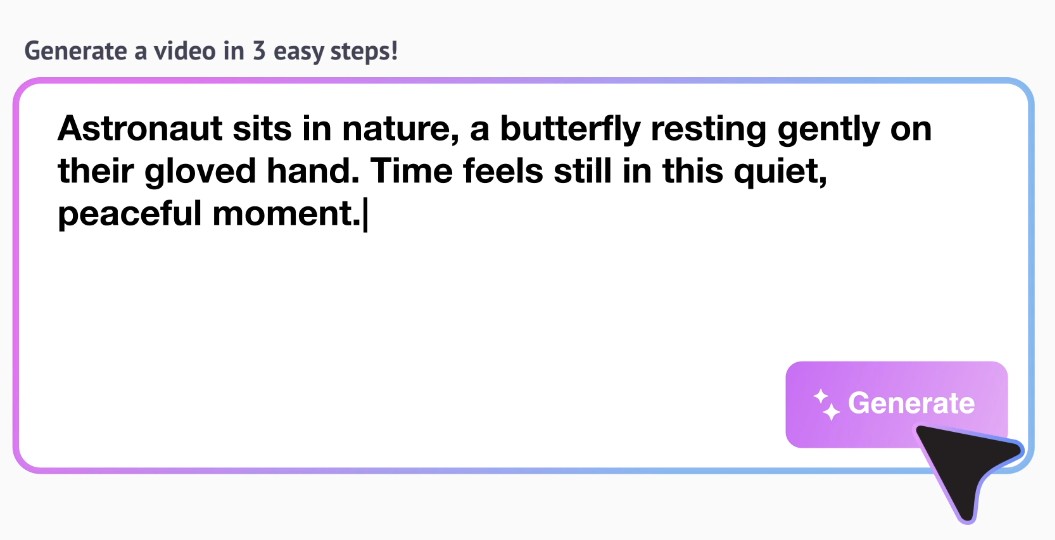
You either paste in your own script, type a rough idea/prompt, or even provide a blog URL. Steve AI's AI analyzes your input and prepares a storyboard automatically. It supports ideas, rough notes, and URLs - not just polished scripts.
Step 2: Choose Your Video Preferences
This is where it gets fun. You select your video type (Animation, Generative AI, or Live Action Stock), duration (I usually keep mine around 45–60 seconds for social content), background music, language, and the platform auto-detects the content category based on your script. I genuinely love that feature - it's a nice little quality-of-life touch.
Step 3: Review and Edit Scenes
Steve AI breaks your script into individual scenes, and you can tweak the text, reorder scenes, or adjust what's sent to the AI for visuals. Each scene can have its own description to guide the visual output. When I tested this, I found that adding specific scene descriptions significantly improved the relevancy of the generated visuals.
Step 4: Select Your Template and Character
For animated videos, you choose from a set of templates and characters. There are six template styles in the animation mode, with various character options to filter by gender, style, and more. I'd love to see more variety here in future updates, but there's enough to get started without feeling boxed in.
Step 5: Customize
Once your initial video is generated, you jump into the editor where you can:
- Change backgrounds (with a one-click 'apply to all scenes' option - huge timesaver!)
- Swap characters and adjust gestures and expressions
- Update text, fonts, and colors
- Add transitions between scenes
- Upload your brand logo
- Adjust background music from the built-in library (all copyright-free!)
- Tweak voiceover settings or upload your own voice
Step 6: Publish or Download
Once you're happy with everything, you can download your video as an MP4 or even publish it directly to YouTube with a single click. Rendering typically takes around 5–10 minutes, which is pretty reasonable. Premium users get up to 1080p and 2K resolution, while the free plan caps at 720p with a watermark.
Steve AI Key Features
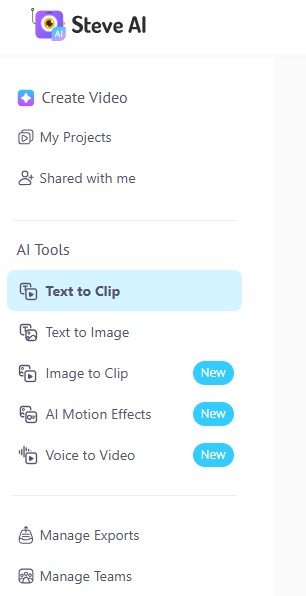
Text-to-Video (and More)
Steve AI isn't just text-to-video - it's text-to-any-type-of-video. You can feed it a script, a blog URL, a rough idea, or even an audio file. The AI handles the heavy lifting: matching visuals, timing scenes, selecting backgrounds, and placing transitions. It supports animated, live-action, and AI-generated styles, plus motion graphics.
Unified Prompt Flow
With Steve AI 3.0+, the entire creation process starts with a single prompt. You don't need to navigate multiple complex menus to get started. Just describe what you want and let the AI do its thing. This is exactly what beginners need, and it makes the experience feel much more modern compared to older iterations of the platform.
AI Voiceovers
Steve AI includes a built-in text-to-speech voiceover engine with multiple voices, languages, and accents. You can choose male or female voices and even assign different voices to different characters. I found the voice quality to be decent - not the most natural-sounding I've ever heard (it can lean a little robotic in places), but perfectly acceptable for explainer content and YouTube videos.
Prefer your own voice? You can record directly in the platform or upload a pre-recorded audio file. The tool will sync it up with your scenes.
Copyright-Free Music Library
Every track in Steve AI's music library is copyright-free. That means you can upload your finished video to YouTube, Instagram, TikTok, or anywhere else without worrying about a content strike. This is a non-negotiable for anyone doing YouTube content, so I'm glad they've sorted this out properly.
Direct YouTube Publishing
One of my favorite features: you can publish your video directly to YouTube from within Steve AI. No downloading, no re-uploading. One click, done. If you're grinding out a high volume of videos for a faceless channel, this alone saves meaningful time.
Multiple Aspect Ratios
Steve AI supports 16:9 for YouTube, vertical 9:16 for Shorts and TikTok, and square formats for Instagram. No need to resize or crop in a separate tool. This is a thoughtful addition for multi-platform creators.
Blog to Animation / URL to Video
This one's clever. You can drop in the URL of a blog post and Steve AI will pull the content, parse it, and turn it into a video. If you're a blogger looking to repurpose your written content into video format, this feature alone could be worth the subscription price.
Generative AI Visuals
Steve AI's generative AI mode creates unique visuals for each video rather than relying solely on stock footage. This means your videos are less likely to look identical to other creators using the same platform - a real differentiator in a world where stock footage fatigue is a genuine problem.
Customization Tools
The drag-and-drop editor is genuinely user-friendly. You can adjust colors to match your brand palette, upload a logo, switch backgrounds, change character actions and expressions, modify scene timings, and add transitions. It's not After Effects, but it's more than enough for most content creators.
Steve AI Pricing
Let me cut straight to it. Here's the current pricing as of 2026 (these are the most up-to-date prices based on Steve AI's website):
Plan | Monthly | Annual | Best For |
Starter | $29/mo | $19/mo ($228/yr) | Beginners & testers |
Pro | $59/mo | $39/mo ($468/yr) | Regular creators |
Generative AI | $129/mo | $99/mo ($1,188/yr) | Power users & agencies |
Enterprise | Custom | Custom | Large teams |
A few things worth noting:
- Paying annually saves you 30%+ compared to monthly billing.
- The Starter plan comes with 120 seconds of Generative Credits as an add-on.
- The Generative AI plan includes 15 minutes of Generative Credits.
- Enterprise pricing is custom - contact their team directly.
I feel like the annual Starter plan at $19/month is a solid entry point for individual creators. If you're producing 5-minute videos, that's roughly 20 videos per month - not bad at all. The Pro plan at $39/month annually is where I'd personally land if I was using this consistently for a YouTube channel or client work.
For context, getting a single 3-minute explainer video made on Fiverr can run you $500–$1,000. Even the top Steve AI plan pays for itself after just one or two videos. If you're already exploring YouTube automation channel ideas, this kind of ROI is hard to ignore.
Is There a Free Plan?
Yes! Steve AI does offer a free plan, but manage your expectations. You'll get watermarked videos, 720p resolution, and very limited generative credits. I'd recommend treating it as a trial rather than a permanent setup. Use it to test the workflow and see if the tool clicks for you before committing to a paid plan.
What I Liked About Steve AI
- Ridiculously easy to use - I had my first animated video done in under 25 minutes.
- Multiple video styles in one platform (animated, live-action, generative AI, talking head).
- Direct YouTube publishing - a genuine timesaver for high-volume creators.
- Copyright-free music library - no stress about monetization issues.
- Unique generative AI visuals that don't rely solely on the same tired stock footage.
- Blog-to-video and URL input options are genuinely useful for content repurposing.
- The 'apply to all scenes' background feature is a small but brilliant quality-of-life touch.
- Steve AI 3.0 improvements in rendering speed and visual quality are noticeable.
What I Didn't Like About Steve AI
- The AI-generated voiceovers can sound a little robotic in places - not always the most natural.
- Advanced editing features (like higher resolution downloads) require upgrading to pricier plans.
- The animated character selection feels a bit limited - more variety would be welcome.
- The free plan is quite restrictive, making it more of a limited demo than a genuinely usable free tier.
- You can only have multiple avatars in conversations on Enterprise plans.
That said, I want to be fair: these are relatively minor gripes compared to what the platform actually delivers, especially at its price point.
Steve AI vs. The Competition
How does Steve AI stack up against other popular AI video tools? Here's my honest breakdown:
Feature | Steve AI | Synthesia | Pictory | InVideo AI |
Free Plan | Yes (watermark) | Trial only | Trial only | Yes (watermark) |
Animation | ✓ Strong | Avatars only | Stock only | Limited |
Voice Quality | Good | Excellent | Excellent | Good |
Ease of Use | Very easy | Easy | Easy | Moderate |
Best Use | Animated/explainer | Corporate | Marketing | Faceless YT |
I've also reviewed Pictory AI in depth on my blog. If you're primarily working with stock footage-based videos rather than animation, Pictory might actually be a better fit for your workflow. But for clean, polished animated content, Steve AI is hard to beat at this price point.
Real-World Use Cases
Here's where I feel Steve AI really shines. If you're building a faceless YouTube channel in 2026, Steve AI is a serious contender for your toolkit. The animated video format works brilliantly for educational content, explainer videos, and list-style videos - all popular formats in the faceless niche.
One creator I read about used Steve AI to produce explainer videos for their clients' websites, saving $500–$1,000 per video compared to hiring a Fiverr animator. They were able to create a 3-minute animated explainer in under an hour, from script to final download. That's the kind of ROI that makes a subscription a no-brainer.
Another excellent use case: content repurposing. If you're a blogger, you can drop your blog URL into Steve AI and have a video version ready in minutes. Combined with a strategy around YouTube SEO and channel growth, this could significantly accelerate your content output.
Is Steve AI Legit or a Scam?
Let me be blunt: Steve AI is 100% legit. It's a real product from a real company, and it does exactly what it promises. The platform has been around for several years, has gone through meaningful updates (hello, Steve AI 3.0), and has a growing user base of content creators, marketers, and small businesses.
It's not a get-rich-quick scheme. It's a tool. And like any tool, the results you get depend on how you use it. If you put in a thoughtful, well-structured script, you'll get a genuinely solid video out. If you type 'make video about cats' and hit generate, well... you get what you give.
My Final Verdict
Here's the bottom line after putting Steve AI through its paces: I'm genuinely impressed.
It's one of the easiest ways I've found to turn a plain script into a clean, animated video. The interface is smooth, the features are practical, and the pricing - especially on annual plans - is very competitive. Yes, the voiceovers could be more natural, and yes, advanced features cost more. But for the core use case of fast, affordable, professional-looking animated video content? Steve AI delivers.
I would recommend it particularly to:
- Faceless YouTube channel operators who need animated content at scale.
- Freelancers offering video services who want to speed up production.
- Small businesses needing explainer videos without the agency price tag.
- Bloggers looking to repurpose their content into video format.
If you're serious about growing on YouTube - whether through traditional or faceless automation strategies - having a tool like Steve AI in your arsenal just makes sense. Start with the free plan to test the waters, then decide if the paid plans are right for your content goals.
Frequently Asked Questions (FAQ)
Is Steve AI free to use?
Yes, Steve AI has a free plan. However, it comes with watermarked videos, 720p resolution, and minimal generative credits. It's best used as a trial to test the platform before committing to a paid subscription.
What is the best Steve AI plan for beginners?
I'd recommend the Starter plan billed annually at $19/month. It gives you a solid amount of video creation time and removes the watermark. Once you're producing content regularly, consider upgrading to the Pro plan for better resolution and more monthly credits.
Can I use Steve AI videos on YouTube without copyright issues?
Yes! All background music in Steve AI's library is copyright-free, so you can safely upload to YouTube without worrying about content strikes. The platform also supports direct one-click publishing to YouTube.
How long does it take to create a video with Steve AI?
Most creators report completing their first video in 25–30 minutes. Rendering typically takes 5–10 minutes. With Steve AI 3.0, a 1-minute video can render in under 60 seconds.
Does Steve AI have a mobile app?
As of the latest Steve AI 3.0 updates, a mobile app has been announced as coming soon. For now, the platform is browser-based and works well on desktop.
Can I record my own voiceover in Steve AI?
Yes, on paid plans you can record your own voice directly in the platform or upload a pre-recorded audio file. The tool syncs your audio with the video scenes automatically.
How does Steve AI compare to InVideo AI?
Steve AI is stronger for animated and AI-generated video content, while InVideo AI excels at stock footage-based videos and has more templates. If you're running a faceless YouTube channel that leans on animation, Steve AI is the better pick. For a more traditional stock-footage approach, InVideo AI might suit you better.
Is Steve AI good for faceless YouTube channels?
Absolutely. Steve AI is one of the best tools I've come across for creating animated faceless YouTube content. If you want to learn more about this content strategy, check out my guide on how to make faceless YouTube channels with AI.
What video formats and aspect ratios does Steve AI support?
Steve AI supports 16:9 (YouTube standard), 9:16 (vertical for Shorts/TikTok), and square (Instagram). You don't need external tools to resize - it's all handled within the platform.
Ready to give Steve AI a try? Click here to visit Steve AI and get started.

- Best Outdoor Equipment Fulfillment Companies for DTC Brands - October 8, 2026
- Why Your Site Needs an Automated Price Calculator - October 7, 2026
- Essential Considerations When Choosing a Commercial Building - October 3, 2026