I'll be honest with you — when I first heard about VEED.io, my immediate reaction was something along the lines of "Why on earth would I pay a monthly subscription to edit video in a web browser?" It's 2026, after all. You can edit for free on your phone with CapCut, or dive into the deep end with DaVinci Resolve on your Mac without spending a dime. So what exactly is VEED bringing to the table that justifies a monthly fee?
I dug in, stress-tested the features, put the AI tools through their paces, and came out the other side with some genuinely useful (and occasionally humbling) insights. Whether you're a solo content creator trying to churn out Instagram Reels from your couch, or an agency managing five different clients and their very specific brand fonts, this review is going to tell you what you actually need to know.
If you'd like to explore other AI-powered video tools while you're at it, be sure to check out my full AI tools guide here — I cover a ton of platforms to help you find the right fit.
What Is VEED.io?
VEED.io is a browser-based video editing platform that serves over 4 million users worldwide. The big idea here is simple: you get a capable, AI-powered video editor that you can access from any device, without ever downloading software or needing a beefy computer. Everything lives in the cloud, runs in your browser, and gets processed on VEED's servers.
In terms of who's using it — and I mean big names — companies like Netflix, Google, and Meta have reportedly used VEED for video content production. The platform has earned a 4.6 out of 5 rating on G2, which is a solid indicator that real users are finding genuine value here.
I've personally used it to create short social media clips, cut up longer interview recordings into highlights, add subtitles, and test out their snazzy AI features. I also compared it to free alternatives to see if it really earns its price. Spoiler: it depends entirely on who you are.
Who Is VEED.io For?
Let me save you some time with a quick gut-check before we go any further.
VEED.io IS a great fit if you are:
- A marketing team or agency managing multiple clients and brand assets
- A podcaster or content creator who produces long-form interviews and needs them repurposed into short clips fast
- A social media manager handling multiple platforms and needing consistent, on-brand output
- A corporate communications or HR team creating training videos without a dedicated video team
- A beginner who wants a friendly, drag-and-drop editor with AI doing the heavy lifting
VEED.io is probably NOT right for you if you are:
- A solo hobbyist, gamer, or travel vlogger — DaVinci Resolve and CapCut are free and more powerful for your needs
- A professional film editor who needs granular color grading, advanced audio tools, and frame-level precision
- A podcaster who needs complex multi-track audio editing — Descript still wins that crown
- Someone with unreliable internet — VEED lives in the browser, and if your connection hiccups, so does your productivity
If you're building a YouTube channel and thinking about your broader content strategy, I'd also recommend checking out my YouTube guide to understand how video editing tools fit into the bigger picture of channel growth.
VEED.io Key Features
Okay, let's get into the good stuff. Here's what VEED actually offers, and more importantly, what I think about each feature after putting it to the test.
AI Clips — Turn Long Videos Into Short-Form Gold
This is where VEED genuinely impressed me. I took a 24-minute webinar recording — the kind of thing that would normally mean sitting through the whole painful thing to find the highlights — and let VEED's AI Clips feature do its thing. I clicked "Create AI Clips," uploaded the video, selected portrait orientation (great for TikTok and Reels), chose a subtitle style I liked, and set a 30-second clip length.
About five to ten minutes later, VEED had generated five potential clips, each with a score for hook, flow, interest, and engagement. Were they perfect? Not quite — I felt like the ideas were good but maybe not the most attention-grabbing. I would have tweaked them before posting. But here's the thing: I didn't have to watch 24 minutes of footage to get there. That alone is worth something.
What I would do is use these clips as a starting point, add some b-roll images (which you can generate with AI right inside VEED), and tighten up the hook. It's not "one-click magic," but it's definitely "one-click plus a couple of minutes," which beats the heck out of the traditional workflow.

Magic Cut — Your Silence Remover
The Magic Cut feature automatically removes silent pauses and filler words (those ums and ahs we all pretend we don't say). In my testing, it removed 42 instances of silence and filler words with a single click in a 15-minute video. That's genuinely useful for any talking-head content.
One word of caution though: the filler word removal can make videos feel jumpy if you're not careful. The AI will try to remove every single 'like' and 'you know,' and sometimes the result is a video that feels a bit choppy. I'd recommend reviewing the cuts before exporting, especially if your speaker has a more casual, conversational style.
Auto-Subtitles and Captioning
This might be VEED's most universally appreciated feature. The auto-subtitle tool transcribes speech in over 100 languages with solid accuracy. I found it to be particularly reliable for clean audio with minimal background noise — typically hitting around 85-90% accuracy for standard recordings.
You can customize fonts, colors, sizes, and positioning to match your brand, and export the subtitles in multiple formats (SRT, VTT, TXT). There are also different subtitle style presets for different platforms — perfect for YouTube Shorts, TikTok, and so on.
The subtitle translation feature is also worth mentioning. Being able to quickly make your content accessible in different languages is a massive time-saver, especially for anyone targeting international audiences.
Brand Kit — The Agency's Best Friend
Here's the feature that I think most solo-creator-focused reviews completely undersell. The Brand Kit is where VEED earns its keep for teams.
If you're managing a team — even just a couple of editors — you know the pain of having one person use Comic Sans (bless their heart) while another uses your actual brand font. The Brand Kit lets you store your logos, colors, custom fonts, and animation styles in one central place. Any editor on your team can apply the whole brand identity with a single click.
I think that for an agency, this feature alone can save hours of polishing time every month. It's not a flashy feature, but it's the kind of thing that quietly transforms a chaotic workflow into a clean, professional operation.
Note: Multiple Brand Kits are only available on the Pro plan and above, and Enterprise plans get even more control over branding.
AI Avatars and Voice Cloning

VEED lets you clone your face and voice to create an AI avatar — which sounds futuristic and kind of is. You need a Pro plan to access this, and the setup takes around six hours for the clone to be ready. The results in 2026 are genuinely impressive — surprisingly natural, in fact.
However — and this is important — AI avatars burn through credits like crazy. Generating even a 10-second clip with an avatar can eat up a significant chunk of your monthly credit allowance. If you're planning to run a fully AI faceless channel using this feature, costs will add up fast. Keep that in mind before committing.
If faceless YouTube channels are your goal, I'd suggest reading my YouTube Automation guide to understand all your options before spending on a tool that might not be the most cost-effective fit for this specific use case.
Text-to-Video AI Generator
The text-to-video feature is a neat trick. You type in a phrase or a detailed script, and VEED creates a video complete with a voiceover, stock footage, and an organized structure. I tested it with "Golfing for Beginners" and was genuinely entertained by the result — it wrote a script, recorded a voiceover, found stock footage, and put it all together.
Is it going to replace a full production pipeline? Absolutely not. The stock footage can be a bit generic and repetitive. But for testing content ideas, filling gaps in your library, or creating quick explainer videos, it's a solid feature. I think of it as a rough draft generator — a starting point, not a final product.
Eye Contact Correction
This one is a premium feature that I found myself genuinely impressed by. If your speaker keeps looking slightly away from the camera (which happens constantly in interview-style recordings), VEED's eye contact correction tool uses AI to adjust their gaze. It's a subtle effect, but it makes a video feel significantly more polished and direct. You can try it once for free before deciding if it's worth the credits.
Clean Audio
One-click audio cleanup that removes background noise and enhances dialogue. I tested this on a recording that had some ambient noise in the background, and the results were solid. Think of it as having a sound engineer on call who charges you in credits instead of hourly rates.
Screen Recording and Collaboration Tools
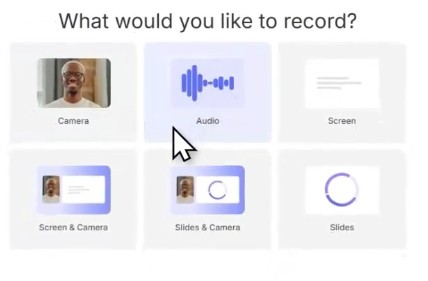
VEED also has built-in screen and webcam recording directly in the browser, which is great if you want to create tutorials or product demos without switching between tools. Your recording goes straight into your project library — no file transfers needed.
The collaboration tools let multiple team members work on the same project, leave time-stamped comments on the timeline, and review edits through shared links. I used this to collect feedback on a client testimonial video, and it genuinely cut down on back-and-forth email chaos.
Asset Library and Stock Media
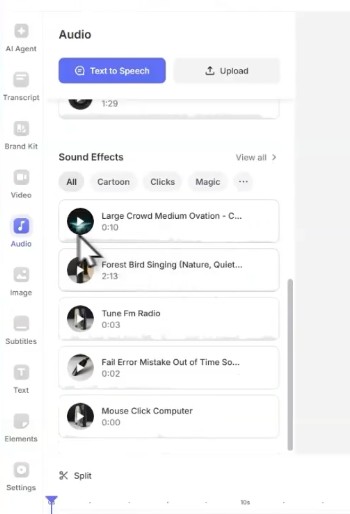
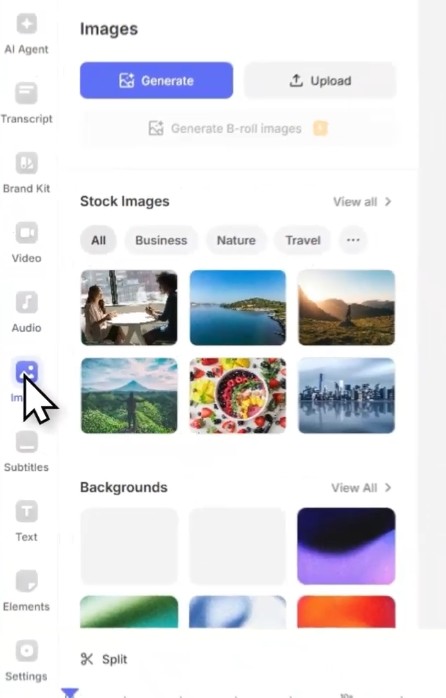
VEED provides a centralized Asset Library where you can store all your project media, and a built-in stock library with video clips, b-roll footage, background music, and sound effects. Everything integrates directly into the editor — no need to leave the platform to hunt down a royalty-free track.
Content Repurposing and Platform Optimization
VEED automatically resizes your video to suit different platforms — YouTube, TikTok, Instagram Reels, LinkedIn — and lets you preview how it'll look before exporting. For anyone managing content across multiple platforms, this is a genuine time-saver.
VEED.io Pricing (2026 — Updated)
Let's talk money. The pricing images below reflect current Canadian pricing (CA$), so if you're in the US or elsewhere, your actual figures may differ slightly. Here's the full breakdown:
Monthly Pricing
Plan | Creator | Pro | Studio | Enterprise |
Monthly Price | CA$29/editor | CA$39/editor | CA$79/editor | Custom |
Credits/Month | 500 | 2,500 | 15,000 | Custom |
Video Clips | ~100 | ~500 | ~3,000 | Custom |
Yearly Pricing (Save More!)
Plan | Creator | Pro | Studio | Enterprise |
Price/mo (billed yearly) | CA$14 | CA$19 | CA$39 | Custom |
Annual Total | CA$168/yr | CA$228/yr | CA$468/yr | Let's Talk |
Credits/Year | 6,000 | 30,000 | 180,000 | Custom |
What's Included at Each Plan Level?
Creator Plan: No watermark, unlimited subtitle minutes, full stock audio and video library, 15+ AI tools (Clean Audio, Eye Contact Correction, etc.), 5 videos/day in Gen-AI Studio.
Pro Plan (Recommended): Everything in Creator, plus Multiple Brand Kits, 30 min/month of translations, up to 12 hr/month of AI voice, unlimited videos in Gen-AI Studio, unlimited AI image generation.
Studio Plan: Everything in Pro, plus Project Analytics, 1 hr/month of translations, up to 80 hr/month of AI voice, Custom Templates, access to all AI models.
Enterprise Plan: Custom AI credits, centralized team and data management, review mode for videos, privacy controls, dedicated customer success support.
A Word of Caution on Pricing
I want to flag something that other reviews often skip over: the credit system. Not all features cost the same number of credits, and some premium tools — particularly the AI avatars — can drain your monthly allowance surprisingly fast. If you're planning heavy avatar use, the Pro plan's credit cap can become a real constraint.
Also, be careful about the annual billing. If you forget to cancel before your renewal date, refunds are reportedly difficult to obtain. Always set a calendar reminder if you're trying a yearly plan.
Curious how VEED compares to other AI video platforms? I've reviewed several alternatives on my AI tools page — including Synthesia, Pictory, Lumen5, and InVideo.
How to Get Started With VEED.io
Getting started with VEED is refreshingly simple. Since it's browser-based, there's no software to download. Just visit VEED.io, create an account (there's a free plan available — no credit card needed to get started), and you'll land on a clean, intuitive dashboard.
The Dashboard
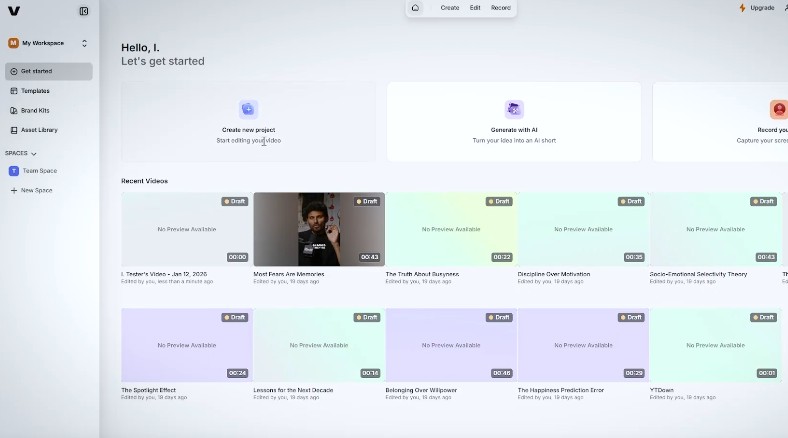
The dashboard is divided into three main sections: the main content area with featured tools and recent projects, a left-hand panel with navigation (Home, Templates, Brand Kit, Asset Library, Spaces), and a top bar with Create, Edit, and Record options.
Creating Your First Project
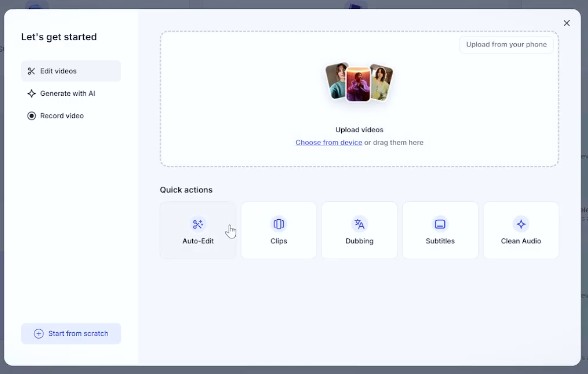
Click Edit and upload your video file, record directly in the browser, or let VEED start you off with AI. Once your video is uploaded, you'll have access to the full editing timeline with drag-and-drop functionality.
The AI Tools Panel
The left-side panel inside the editor is where the magic happens. You'll find it split into three categories:
- Sound Good: Clean audio, remove filler words, remove silences
- Look Good: Eye contact correction, background removal, face filter, AI background expand, green screen, subtitles
- Generate: B-roll generation, AI transitions, AI voice, AI characters, and more
Exporting Your Video
When you're done editing, click Done in the top-right corner. You can choose your resolution (720p to 4K depending on your plan), toggle burned subtitles on or off, and export as MP4, GIF, or MP3. The process is fast and doesn't overwhelm you with settings. You can also publish directly to social platforms from VEED.
VEED.io Pros and Cons
What I Love About VEED.io
- Genuinely fast AI clip generation from long-form content — a 24-minute video turned into 5 clips in under 10 minutes
- The Brand Kit is a game-changer for agencies and teams managing multiple clients
- Auto-subtitles are accurate, customizable, and support 100+ languages
- Works on any device with a browser — no powerful hardware required
- Real-time collaboration with timestamp-linked comments cuts down on email chaos
- Clean audio, eye contact correction, and filler word removal are genuinely useful AI tools
- Solid stock media library built right into the editor
- Content repurposing and platform resizing saves significant time for multi-platform creators
- Free plan available to try before committing (though it includes a watermark)
Where VEED Falls Short
- Browser-based limitations: 4K footage can lag during scrubbing, and a slow internet connection grinds productivity to a halt
- AI avatar credits get expensive fast — not ideal for running a fully AI faceless channel on a budget
- The filler word removal can create choppy, jumpy cuts if not manually reviewed
- Not built for complex multi-track audio editing — podcasters who need granular control should stick with Descript
- The 'edit by script' feature struggles with complex timelines featuring music beds and multiple speakers
- Limited customization options compared to desktop tools like Adobe Premiere Pro or DaVinci Resolve
- Annual billing cancellation policy is reportedly strict — no easy refunds if you forget to cancel
Real-World Performance: How Does VEED Actually Hold Up?
I ran a quick stress test: take a raw 15-minute Zoom recording and turn it into a polished, branded LinkedIn asset in under 30 minutes. In DaVinci Resolve, that workflow typically takes me about 45 minutes of manual work — cutting silence, keyframing subtitles, building from scratch. In VEED, it took less than 20 minutes, thanks to the Magic Cut feature and the Brand Kit auto-applying my agency's guidelines.
That's a real, measurable time saving. And for a team managing multiple clients, that 25-minute difference multiplied across dozens of videos per month translates directly into billable hours recovered.
On the flip side, I did notice performance issues when working with videos longer than about 20-30 minutes — the interface became less responsive, and export times stretched out. I also experienced occasional browser quirks when scrubbing through 4K footage on a high-end MacBook. These aren't dealbreakers for most users, but they're worth knowing about.
Transcription accuracy for standard, clear audio tends to land in the 85-90% range — solid, but you'll still want to do a quick review pass before publishing. Heavy accents or noisy recordings will bring that accuracy down.
VEED.io vs. The Competition
Let me give you a quick reality check on how VEED stacks up against the alternatives:
Tool | Best For | Cost | Weakness |
VEED.io | Agencies, teams, repurposing | CA$14–79+/mo | Browser limits, credit system |
CapCut | Short-form trends, beginners | Free | Limited brand tools |
DaVinci Resolve | Filmmakers, advanced editors | Free | Steep learning curve |
Descript | Podcasters, multi-track audio | Paid | Less focused on short-form |
Synthesia | AI avatar videos | Paid | Limited editing flexibility |
If you're comparing AI video tools specifically, I'd recommend browsing my reviews of Synthesia, Pictory AI, Lumen5, InVideo AI, and Fliki AI on my AI guide page to find the best match for your workflow.
My Final Verdict on VEED.io
VEED.io is not a tool for everyone. If you're a solo hobbyist, a gamer, or someone who wants to make cinematic travel content, you genuinely don't need this — the free alternatives (DaVinci Resolve and CapCut) are more powerful for those use cases and cost you nothing.
But if you're a marketing team, a podcaster repurposing long-form content, or an agency with multiple clients, I would tell you to get this without hesitation. The Brand Kit alone is worth serious consideration. The AI clip generation saves hours of manual work. And the subscription — especially on the yearly Pro plan — is practically negligible compared to the labour costs it saves.
The way I think about it: you're not buying a video editor — you're buying a content repurposing engine. The time you save not watching 30-minute webinars frame by frame to find the highlights is the subscription paying for itself. The brand consistency across your team deliverables is the cherry on top.
I'd give VEED.io 4 out of 5 stars. The browser limitations and credit system complexity keep it from being a perfect 5, but for the right workflow, it's genuinely excellent.
Can You Try VEED.io for Free?
Yes — and I recommend doing so before committing to a paid plan. VEED's free plan gives you access to the core editor, the basic AI tools, and lets you get a real feel for the interface and workflow. The catch is that your exported videos will have a VEED watermark, which makes the free version a test drive rather than a production tool.
No credit card is required to sign up. Just create an account, poke around, upload a video, and see how it feels. If the workflow clicks for you, upgrading to Creator or Pro is straightforward.
Frequently Asked Questions (FAQ)
Is VEED.io good for beginners?
Absolutely. The drag-and-drop interface is intuitive, and most beginners can create their first edited video within 30 minutes of signing up. The AI tools also handle a lot of the technically difficult stuff — like audio cleanup and subtitle generation — automatically.
Does VEED.io work on mobile?
Yes. Because it's browser-based, you can access and edit on any device with an internet connection, including your phone or tablet. I've edited quick TikTok clips while waiting in a doctor's office — it's genuinely that accessible.
What is the VEED.io credit system?
Credits are VEED's internal currency for AI-powered features. Different actions consume different amounts of credits — for example, generating AI clips, using the eye contact correction, or creating AI avatar videos all draw from your monthly credit pool. The Creator plan includes 500 credits/month (good for about 100 video clips), while Pro includes 2,500 credits/month. If you run out, you'll need to upgrade or wait for the next billing cycle.
Can I cancel my VEED.io subscription easily?
You can cancel anytime through your account settings without contacting support. You'll retain premium access until the end of your current billing period, then revert to the free plan. However, if you're on an annual plan and miss the cancellation window, getting a refund can be challenging — set a reminder.
Is VEED.io better than CapCut?
For short-form content, trending formats, and individual creators? CapCut is free and arguably more powerful. For agencies, marketing teams, and businesses that need brand consistency, automation, and professional repurposing workflows, VEED wins hands down.
How accurate are VEED.io's auto-subtitles?
For clear audio with minimal background noise, you're looking at roughly 85-90% accuracy. Accents, technical jargon, and noisy recordings will reduce that. The good news is that editing mistakes is easy — you just click on the subtitle text and fix it directly in the timeline.
Does VEED.io support team collaboration?
Yes. Multiple team members can access shared workspaces, leave time-stamped comments on the timeline, and review projects via shared links — without the reviewer needing their own VEED account. Role-based permissions (Editor, Reviewer, Viewer) give you control over who can do what.
What file formats can I export from VEED.io?
You can export as MP4, GIF, or MP3 (audio only). Resolution options range from 720p to 4K depending on your plan. Subtitles can be exported separately as SRT or VTT files.
Is VEED.io safe to use? What about my data?
VEED uses encryption to protect your data during upload and storage, and complies with GDPR requirements for European users. Two-factor authentication is available for added account security. As always, I recommend keeping local copies of your important source files as a best practice.
How does VEED.io compare to Synthesia or Pictory?
Great question! VEED is more of an all-in-one editor with AI features baked in, while Synthesia specializes in AI avatar videos and Pictory is focused on script-to-video conversion. Check out my detailed comparisons on the AI tools guide for side-by-side breakdowns.
Ready to Give VEED.io a Try?
If the workflow I've described sounds like something that would genuinely save you time and headaches, I'd encourage you to start with the free plan and see for yourself. No credit card, no commitment — just upload a video and let the AI do its thing.
If you're still exploring your options, take a look at my full list of AI video tool reviews and my YouTube channel growth resources to make sure you're building the right stack for your content goals. And if you have questions about VEED or want to share your own experience with it, drop a comment — I'd love to hear how it's working for you. Go create something great!

- Descript Review 2026: Is This AI Video Editor Actually Worth It? - March 29, 2026
- VEED.io Review 2026: Is It Worth the Price Tag? - March 27, 2026
- Fliki AI Review 2026: Is It Worth It for Video & Content Creation? - March 25, 2026