Welcome to my Descript review for 2026.
If you give me a few minutes of your time, I’ll tell you whether Descript is the smartest investment you can make for your content creation workflow — or whether you should close that browser tab and back away slowly.
I’ve been knee-deep in AI tools, video editing software, and content creation platforms for years, and I’ve seen plenty of tools that promise the moon and deliver a lukewarm cup of coffee. So when Descript started getting serious buzz in the creator space, I had to try it myself.
The short version? I’m impressed. Like, genuinely impressed. But it’s not perfect for everyone, and I want to make sure you know exactly what you’re getting into before you hand over your credit card details.
Let’s get into it.
By the way, if you’re also exploring other AI tools for content creation, I’ve reviewed some great alternatives. Check out my Fliki AI Review, my Synthesia Review, and my InVideo AI Review for some solid comparisons.
What Is Descript?
Descript is an AI-powered audio and video editing platform that does something genuinely clever: instead of forcing you to drag clips around a timeline like it’s 2008, it lets you edit your media the same way you’d edit a Word document.
Here’s how it works: you upload or record your video or audio, Descript automatically transcribes everything, and from that point on, your transcript IS your editing interface. Delete a sentence from the transcript? Gone from your video. Rearrange some paragraphs? Your video rearranges itself to match. It sounds almost too simple, and honestly, the first time I used it, it felt a little like magic.
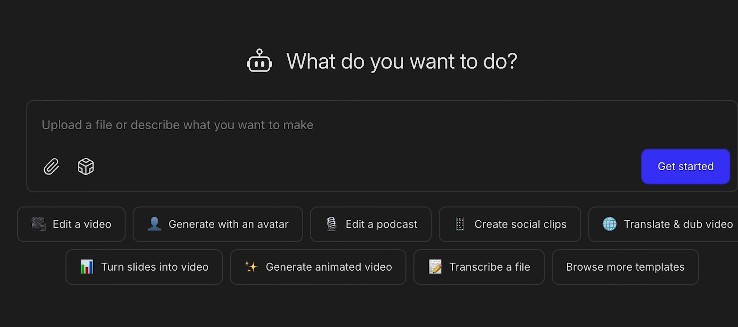
Descript also packs in a seriously impressive suite of AI features — from background noise removal to voice cloning to automatic clip generation — all under the umbrella of its AI assistant called Underlord (love that name, by the way).
It’s built for podcasters, YouTubers, educators, coaches, and anyone who creates a lot of spoken-word content and would rather not spend their entire weekend editing.
Who Is Descript For?
I think Descript is an absolute game-changer for the following types of people:
- Podcasters — Honestly, the podcast editing features alone might justify the subscription. The transcript-based editing, automatic filler word removal, and Studio Sound audio enhancement make producing a polished episode so much faster.
- YouTubers and video creators — Especially those who do talking-head style videos, tutorials, interviews, or any content where dialogue is the star. If you’re interested in growing a YouTube channel, my article on the best ways to make passive income on YouTube pairs really well with a tool like Descript.
- Coaches and educators — If you record a lot of training videos, Zoom calls, or lesson content, Descript will save you an enormous amount of editing time.
- Small business owners and marketers — Need video content but don’t have the budget for a full-time editor? Descript essentially does the heavy lifting for you.
- Teams that collaborate on content — Multiple people can work on the same project, leave timestamp comments, and review edits together.
- Solo creators who hired a part-time editor — I know someone who hired a friend’s daughter to edit their video podcast, and with Descript, she gets the whole thing done in about 10 minutes per episode. That’s the power of this tool.
Who Is Descript NOT For?
As much as I love Descript, it’s not for everyone. You should probably look elsewhere if you’re:
- A professional video editor working on cinematic projects — If your work involves heavy color grading, complex motion graphics, layered effects, or intricate multi-camera sequencing, you’ll want Adobe Premiere Pro, Final Cut Pro, or DaVinci Resolve. Descript is built for speed and simplicity, not sophisticated visual storytelling.
- Frequently offline — Descript is cloud-based, which means it needs a solid internet connection to function well. If you’re often editing on a train with spotty WiFi, that’s going to be frustrating.
- Creating short-form social content with lots of effects — If your primary output is TikTok-style videos with trending visual effects and templates, CapCut might actually suit you better.
- Looking for a set-it-and-forget-it AI editor — Descript is fast, but you still need to review AI edits. The AI isn’t perfect (more on that below), so some human oversight is always a good idea.
How Does Descript Work? A Quick Workflow Overview
Getting started with Descript is refreshingly straightforward. Here’s the basic workflow:
- Create a free account at descript.com and choose your plan (or start free).
- Download the desktop app (highly recommended over the browser version for speed, especially with larger 4K files).
- Create a new project, give it a name, and upload your video or audio file. You can also record directly inside Descript using your webcam, screen, or microphone.
- Wait a few minutes for Descript to auto-transcribe your content. It supports over 20 languages and automatically detects the number of speakers.
- Edit your transcript like a document — delete mistakes, cut sections, rearrange content. The video syncs automatically.
- Use Descript’s AI tools (Underlord) to automate the boring stuff: remove filler words, shorten silences, clean up audio, correct eye contact, and more.
- Add captions, B-roll, music, text effects, and visual layouts.
- Export your finished video directly to YouTube, Google Drive, or locally in up to 4K resolution (depending on your plan).
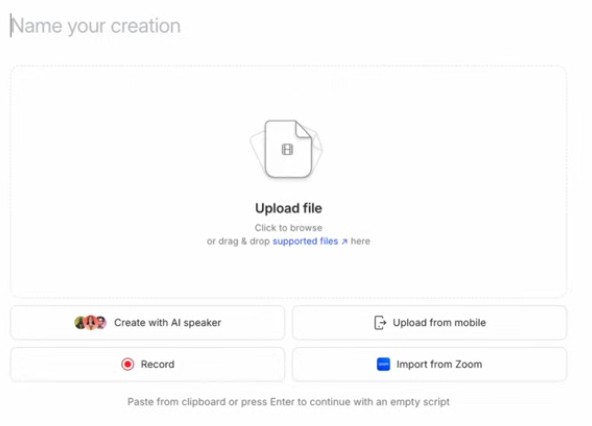
What I particularly love is that on step three, you can also paste a YouTube link or import directly from Zoom. For a content creator, that’s a seriously convenient option.
Key Descript Features (The Ones That Actually Matter)
1. Text-Based Editing — The Core Magic
This is Descript’s flagship feature and what sets it apart from every other editor out there. Once your video is transcribed, the transcript becomes your timeline. Highlight a section of text, hit delete, and that chunk of video is gone. Rearrange paragraphs, and the video rearranges itself.
I feel like this single feature alone is worth the price of entry for anyone who does a lot of talking in their videos. It turns what used to be a painful process of scrubbing through footage into something as intuitive as editing an email. Once you experience it, going back to traditional timeline editing feels deeply, deeply unpleasant.
2. Underlord — Your AI Video Co-Editor
Underlord is Descript’s built-in AI assistant, and it handles the heavy lifting across several features. Think of it as having a junior editor who never gets tired, never complains, and works in seconds.
There’s a handy "Edit for Clarity" mode where you can set the intensity — low, medium, or heavy — and Underlord will scan your entire video, flag all the fluff, filler words, and retakes, and present them for your review. You can accept or reject individual edits. It’s not 100% perfect every time, but it’s a massive time-saver.
3. Studio Sound — Magical Audio Cleanup
Hand on heart, Studio Sound is one of the most impressive AI features I’ve seen in any content tool. You click one button and it removes background noise, reduces echo, enhances vocal clarity, and evens out your audio levels. It’s been described as having "arguably the best sound fixing enhancement" available, and I wouldn’t argue with that.
I’ve tested it on recordings made next to a busy road, in echoey rooms, and with budget microphones. The results are consistently impressive. It won’t turn a terrible recording into a studio masterpiece, but it will make a decent recording sound really good.
This feature alone makes Descript worth serious consideration for any podcaster who doesn’t record in a treated studio environment — which, let’s be honest, is most of us.
4. Filler Word Removal — Bye Bye, “Um”
If you’re anything like me, you say “um” and “uh” about 47 times per minute when you’re recording. Descript finds every single one of them and gives you the option to remove them all in bulk. You can review the list and keep any that sound natural, which is a nice touch.
It also detects repeated words, double-ups, and other verbal stumbles. In one test, it caught phrases said two or even three times in a row and quietly cleaned them up. Lifesaving.
5. Shorten Word Gap — Cut the Dead Air
This might be my personal favorite time-saver after the text editing. You set a threshold — say, any pause longer than one second — and Descript automatically trims all of them down. In one test I watched, a 14-minute 38-second video lost four full minutes of dead air without a single manual cut. Four minutes! Gone in seconds.
6. Remove Retake — Keep Your Best Take
Record the same line three times trying to get it right? Descript’s Remove Retake feature scans your transcript, identifies repeated sections, and surfaces the best take (usually the last one) for removal of the rest. You get a preview and can approve or reject each suggestion.
I’d say it’s about 85-90% accurate, so I wouldn’t apply it and upload straight away without checking — but as a starting point before you do your own review, it’s excellent.
7. Eye Contact Correction — A Little Creepy, A Lot Useful
Do you read from a script or look at notes while recording? Eye Contact Correction uses AI to digitally adjust your gaze so it looks like you’re staring right into the camera. The first time I saw this feature in action, it was, admittedly, a little unsettling. But the time it saves in re-recording is substantial.
In my experience, it works well when your eyes are somewhat near the camera. If you’re looking wildly off to the side, it’ll do its best but may not be completely convincing. Either way, it gets better the more you use it — creators who use it consistently report it looking completely natural over time.
8. Voice Cloning (Overdub) — Fix Mistakes Without Re-Recording
This one blew my mind the first time I used it. After providing about 10 minutes of training audio, Descript creates an AI clone of your voice. Made a mistake? Typed the wrong word? Just highlight it, choose Overdub, type what you actually meant to say, and Descript regenerates it in your voice.
It works best for short corrections and word swaps. For longer passages, the quality can drop a little and sound slightly unnatural — so I wouldn’t use it to rewrite entire paragraphs. But for fixing small mistakes after the fact? It’s a genuine game-changer. And yes, Descript has safety restrictions — you can only clone your own voice.
9. Automatic Multicam — For Podcasters With Guests
If you do interviews or have a co-host and you’re recording separate video tracks, Automatic Multicam is an incredible feature. Upload both video files, apply the feature, and Descript automatically cuts between speakers depending on who’s talking. It gives you a professionally edited, multi-camera feel that would normally take a significant amount of manual work. In practice, it takes about five seconds.
10. Create Clips & Highlight Reels — Repurpose in Seconds
Long-form content is great, but the social media algorithm gods demand short clips. Descript’s Create Clips feature lets you specify how many clips you want, how long they should be, and what you’re looking for, and the AI does the rest. Each clip becomes its own independent project that you can edit further if needed.
Similarly, Create Highlight Reel lets you generate a trailer-style summary of your full video in a custom duration. Great for podcast trailers, YouTube channel previews, or Instagram teasers.
If you’re trying to build a presence across multiple platforms — which I strongly recommend — check out my piece on evergreen YouTube channel ideas for beginners. Descript pairs brilliantly with that kind of strategy.
11. Captions — Auto-Generated and Customizable
Because Descript already has your full transcript the moment you upload, generating captions is almost instantaneous. You can style them, edit them for accuracy, export them as SRT files, or burn them directly into your footage. There are multiple caption style options, though I’ll be honest — some of them are a bit basic compared to dedicated caption tools. But for everyday use, they’re more than adequate.
12. B-Roll & Stock Media Library
Descript includes a built-in stock footage and image library so you can add B-roll without switching to another tool. Just search for a topic, find a clip you like, and drag it into your timeline. It’s one of my favorite features because it keeps everything in one place.
I think the B-roll feature is genuinely underrated. Nobody wants to watch someone talk to a camera for nine minutes straight — cutting to relevant footage makes your content significantly more engaging.
13. Video Layouts and Text Effects
Under the Layouts and Properties panel, Descript offers a surprisingly rich library of visual effects: zoom-ins, text animations, paragraph callouts, screen-share overlays, and more. You can apply these to specific sections of your video by simply splitting scenes and assigning layouts.
What I would do as a starting point is edit the core video using the transcript, then come back through and add a few zoom-ins at key moments and a punchy text callout or two. It makes a huge difference to the professionalism and engagement of the final product.
14. AI-Generated Show Notes, Titles & YouTube Descriptions
This is an absolute gem for YouTubers. Once your video is edited, Descript can generate a full YouTube description complete with timestamps, draft a title, create show notes, and summarize your content. You can even specify keywords or a call to action.
If growing a YouTube channel is part of your strategy — and it absolutely should be — you’ll want to pair a tool like Descript with solid foundational knowledge. My piece on whether YouTube is still profitable is worth a read, and so is my guide on YouTube niches with low competition if you’re just starting out.
15. Multi-Language Support and Translation
Descript supports transcription in over 20 languages and — on the Business plan — can translate and dub your video into 30+ languages with AI. For creators with an international audience, or anyone looking to repurpose content across different markets, this is a seriously powerful feature.
Descript Pros and Cons
The Pros
- Text-based editing is intuitive and dramatically faster than traditional timeline editing
- Studio Sound audio enhancement is best-in-class for a one-click solution
- Filler word removal, silence trimming, and retake removal save hours on every project
- Voice cloning (Overdub) for fixing mistakes without re-recording
- AI clip creation and highlight reel generation for easy content repurposing
- Automatic Multicam cuts for podcast interviews and co-hosted shows
- Built-in B-roll library, captions, music, and stock media
- Multi-language transcription and translation on higher plans
- AI-generated descriptions, show notes, and YouTube titles
- All-in-one platform reduces the need for multiple tools
- Free plan available to test the waters
The Cons
- Cloud-based processing means you need a fast, stable internet connection
- Can feel slow on larger projects with multiple video tracks
- AI features aren’t perfect — always review automated edits before finalizing
- Not suitable for cinematic or visually complex productions
- The credit-based system for AI features can run out faster than you’d expect on heavy use
- Each team member needs their own license (costs add up for larger teams)
- Some captions styles feel a bit basic compared to dedicated caption tools
- Overdub voice cloning quality can drop on longer regenerated passages
How Much Does Descript Cost? (2026 Pricing)
Descript offers four main plans: Hobbyist, Creator, Business, and Enterprise. You can pay monthly or annually — and going annual saves you up to 35%, which is significant.
Here’s a quick breakdown based on the current pricing:
Plan | Monthly | Annual | Best For |
Hobbyist | $24/mo | $16/mo | Solo creators |
Creator | $35/mo | $24/mo | Heavy users |
Business | $65/mo | $50/mo | Teams |
Enterprise | Custom | Custom | Large orgs |
What’s included at each tier:
- Hobbyist ($16/mo annual, $24/mo monthly): 10 media hours/month, 400 AI credits/month, 1080p export watermark-free, access to Underlord AI tools including Studio Sound, Remove Filler Words, Create Clips, and AI Speech with custom voice clones
- Creator ($24/mo annual, $35/mo monthly): 30 media hours/month (+5 bonus hours), 800 AI credits/month (+500 bonus), 4K export, full access to Underlord and 20+ AI tools, generate video with the latest AI models, unlimited royalty-free stock media library
- Business ($50/mo annual, $65/mo monthly): 40 media hours/month (+10 bonus), 1500 AI credits/month (+1000 bonus), team-wide Brand Studio access, translate and dub video in 30+ languages with proofread, generate custom avatars from photos, priority support with SLA
- Enterprise: Custom pricing with advanced security, SSO/SCIM, granular brand controls, custom AI credits, flexible billing, and more
My recommendation? If you’re just starting out, I’d actually suggest doing one month on the Hobbyist monthly plan first. Get the feel of the tool, see if it clicks with your workflow, and then switch to the annual Creator plan if you’re happy. That way you’re locking in the 35% discount once you know you’re committed.
Is There a Free Plan?
Yes! Descript does have a free option. It’s limited — you get 1 hour of transcription per month and exports come with a watermark at 720p — but it’s a perfectly reasonable way to test whether the tool is right for you before spending anything. I think Descript is confident enough in its product to let you fall in love with it for free, which is a smart move.
Descript vs The Competition
I get asked a lot about how Descript compares to other tools, so here’s my honest take:
Descript vs Adobe Premiere Pro / Final Cut Pro
These are professional-grade editors with more control over colour grading, effects, and export formats. If you’re doing cinematic work, you need them. But for spoken-word content, Descript is dramatically faster. I wouldn’t use Premiere to edit a podcast any more than I’d use a sledgehammer to crack a walnut.
Descript vs CapCut
CapCut is excellent for short-form social content with lots of visual effects and trending templates. For longer content — podcasts, YouTube videos, tutorials — Descript wins hands down. The transcript-based editing and AI cleanup features simply aren’t available in CapCut.
Descript vs Camtasia
Camtasia is better for highly visual screen recording tutorials with callouts, annotations, and cursor highlights. Descript is faster and smarter for anything that’s dialogue-heavy. Both are solid tools; they just serve different use cases.
Descript vs Other AI Video Tools
There are a lot of AI video creation tools out there, and it’s worth knowing the landscape. I’ve reviewed tools like Pictory AI and Lumen5, which are more focused on turning text or existing footage into new videos. Descript is different — it’s built for editing your own recorded content, not generating new video from scratch. Different tools, different jobs.
My Verdict: Is Descript Worth It?
Yes. Genuinely, wholeheartedly yes — with one important caveat.
Descript is absolutely worth it if you create spoken-word content regularly and want to spend less time editing and more time actually creating. The time savings are real and significant. I’ve seen whole episodes edited in 10 minutes. That kind of efficiency changes your entire relationship with content production.
The Studio Sound feature alone has convinced people to switch from other editors. The text-based editing is genuinely the future. The AI cleanup tools are impressive and constantly improving. And the repurposing features — clips, highlight reels, show notes, descriptions — add massive value on top of the core editor.
The caveat? If you’re a professional video editor working on visually complex projects, or you’re trying to do full cinematic production work, Descript isn’t your tool. It’s not trying to be. It’s trying to be the best, smartest, most intuitive editor for content creators, and in that lane, it absolutely delivers.
I think it’s the number one AI video editor available right now for creators who prioritize speed, simplicity, and quality audio-first content. And that’s a big call from someone who’s tried a lot of these tools.
Frequently Asked Questions About Descript
Is Descript good for beginners?
Yes, absolutely. In fact, I’d argue Descript is better for beginners than traditional video editors because the learning curve is so much gentler. If you can edit a Word document, you can edit a video in Descript. You don’t need to understand timelines, keyframes, or transitions. You just read, delete, and done.
Can I use Descript for podcast editing?
Descript is arguably the best podcast editing tool available right now. The transcript-based editing, automatic filler word removal, silence trimming, Studio Sound enhancement, and multi-speaker support all make it exceptionally well-suited for podcast production. There’s really nothing else like it for this specific use case.
How accurate is Descript’s transcription?
From my testing and the feedback I’ve gathered, Descript achieves roughly 95% accuracy with clear audio and a standard accent. Background noise, multiple overlapping speakers, or heavy accents can reduce accuracy somewhat. You’ll almost always need to do a quick proofread, but the transcripts are generally very usable right out of the box. You can also create a custom glossary for technical terms, brand names, or unusual words to improve accuracy over time.
Does Descript work offline?
Not really. Descript is cloud-based, which means most of its processing — transcription, AI tools, audio enhancement — requires an internet connection. You can download the desktop app (which I recommend over the browser version for speed), but the AI features won’t work without connectivity.
Is Descript worth the price for solo creators?
I think the Hobbyist plan at $16/month annually is an excellent deal for solo creators who produce regular content. You get 10 hours of media per month, 400 AI credits, 1080p export, and access to the core AI tools. For most podcasters or YouTubers who produce one or two pieces of content per week, that’s plenty. If you’re producing more volume or need 4K export, the Creator plan at $24/month annually is genuinely good value given everything you get.
How does Descript compare to Opus Clip for creating social media clips?
Opus Clip is a dedicated AI clip creation tool that costs around $29/month on its own. Descript includes a similar clip creation feature as part of its subscription. So if social clips are part of your workflow, you’re essentially getting that functionality bundled in for free, which is a nice bonus.
Can Descript translate my videos into other languages?
Yes, on the Business plan. Descript can translate and dub your video into 30+ languages with AI, complete with a proofread pass. For creators with an international audience, this is a powerful feature that could dramatically extend the reach of your content.
What are the best alternatives to Descript?
The best alternatives depend on your use case. For professional video editing, Adobe Premiere Pro or Final Cut Pro. For short-form social content, CapCut. For screen recording tutorials, Camtasia. For AI-generated video from text, tools like Fliki AI or Synthesia are excellent options. But for editing your own recorded spoken-word content, Descript genuinely stands alone.
Ready to try Descript for yourself? You can start with the free plan at descript.com and get a feel for whether it fits your workflow before committing to a paid subscription.
If you found this review helpful, please share it with a friend or someone that could benefit!

- Kapwing Review 2026: Is It Honestly Worth Your Time and Money? - March 31, 2026
- Descript Review 2026: Is This AI Video Editor Actually Worth It? - March 29, 2026
- VEED.io Review 2026: Is It Worth the Price Tag? - March 27, 2026